Author: Nijo Joseph

Let’s Play with WEB API – Part -1 : Retrieve Multiple Records

Retrieve Multiple  Records using Web API

The Web API is a newly introduced open standard endpoint currently available in CRM 2016  at [organization uri]/api/data/v8.0/ which implements ODATA v4 and allows you the full blown functionality that you would typically experience when interacting through the CRM Organisation Service.

The Web API service is said to eventually replace the existing Organisation and Organisation Data service and MS recommend that if you writing new code that you begin using the Web API endpoint as the existing ODATA REST endpoint is officially deprecated but still available for backward compatibility.

The new API has introduced some impressive functionality that was not available to us previously with the existing ODATA service. Some of that functionality includes:

  • Ability to execute saved queries
  • Ability to execute FetchXML
  • Use Queries Up to Second Level

Following code shows how to retrieve records using web API, I have tested to retrieve 2000+ records and it is working fine.

This code alerts the number of contacts under an Account entity.

function AccountOnLoad()

{

    var Id = Xrm.Page.data.entity.getId().substring(1, 37);

    var entity = "contacts";

 var columnSet = "?$select=firstname&$filter=_accountid_value eq " + Id + "&$count=true";

    var options = columnSet;


    var serverURL = Xrm.Page.context.getClientUrl();

    var Query = entity + options;

    var req = new XMLHttpRequest();

    req.open("GET", serverURL + "/api/data/v8.0/" + Query, true);

    req.setRequestHeader("Accept", "application/json");

    req.setRequestHeader("Content-Type", "application/json; charset=utf-8");

    req.setRequestHeader("OData-MaxVersion", "4.0");

    req.setRequestHeader("OData-Version", "4.0");

    req.onreadystatechange = function () {

        if (this.readyState == 4 /* complete */) {

            req.onreadystatechange = null;

            if (this.status == 200) {

                var data = JSON.parse(this.response);

                if (data['@odata.count'] != null)

                    alert("This Account Has" + data['@odata.count'] + "Contacts");

            } else {

                var error = JSON.parse(this.response).error;

                alert(error.message);

            }

        }

    };

    req.send();

}


There are many other features too which I will be demonstrating in the upcoming posts.


Field Conflicts

Recently I faced a strange issue, I used a filed (lookup) twice in the form and applied a pre-filtering java-script to the field. But only one filed is getting filtered by the script.I tried many options and I couldn’t identify the issue. Have you even faced  this issue ? Finally I got the answer from  Scott Durow ( Thank you Scott!!! ). I decided to post this issue because if someone is facing the same issue , this will help them to solve the issue. Following is the explanation for this issue.

The issue you are experiencing is because the ‘getControl’ method returns only the first control – so in fact you are only adding the custom filter to the first control.

An attribute object has a ‘controls’ collection that can give you all the controls for a specific attribute. So you can add the filter to all the controls by using something like:

Xrm.Page.getAttribute(“fieldname”).controls.forEach(

function (control, i) {

control.addPreSearch(filterCustomerAccounts);

var customerAccountFilter = “<filter type=’and’><condition attribute=’accountcategorycode’ operator=’eq’ value=’1’/></filter>”;

control.addCustomFilter(customerAccountFilter, “account”);

}

);

Hope this helps!!!

Nijo


Document Template in CRM 2016

Dear all ,

End-users will now be able to generate documents such as contracts, quotes, orders, invoices and other template (Word or Excel) documents with a single click. Templates can be generated and pre-defined using a wizard. You do not need to depend on other add-ons or build custom reports anymore!

Following steps explain step by step process of word document generation from CRM.

Create a Template

Go to Settings > Templates > Document Templates > New ()

OR

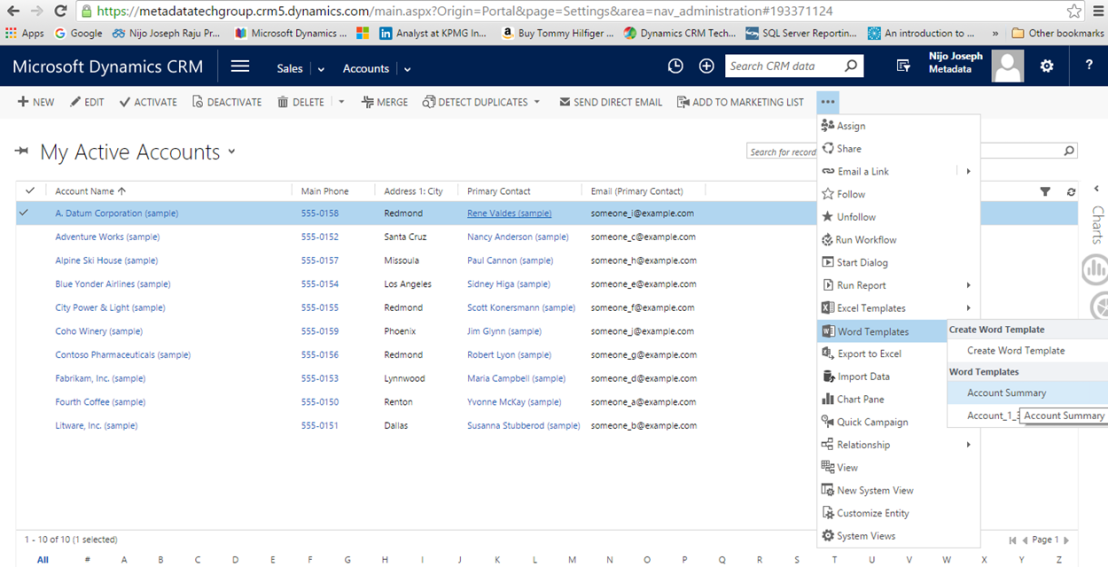
Open a record such as an account in Sales. Go to Sales > Accounts. Open an account and click MoreWord Templates > Create Word Template.

Picture1

Select Primary Entity

Now  you will be asked to select the primary entity and required relation ships from the entity

Picture2

Download Template

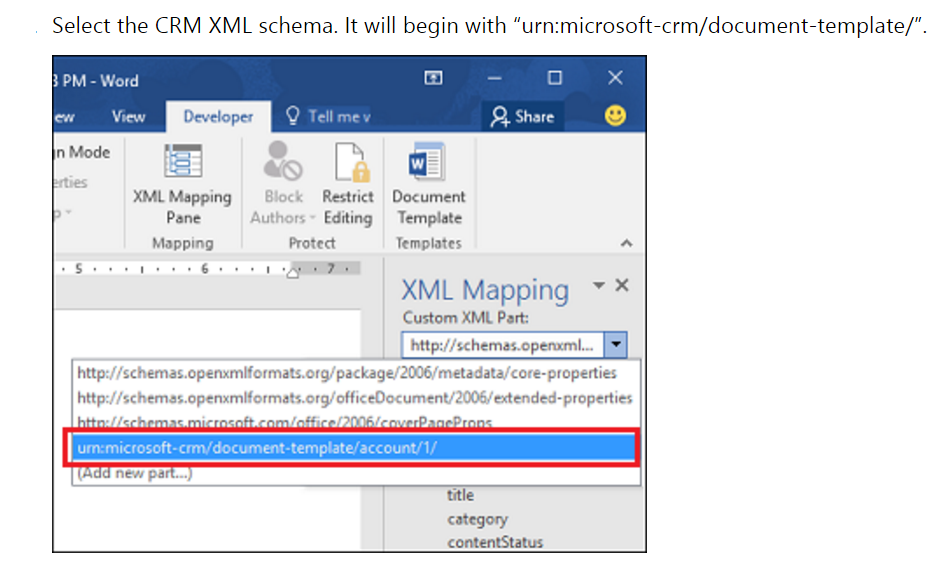
Click Download Template on the Select Entity page to download the template with embedded xml .Now the template is ready for field mapping , you can do the required formatting’s and mappings on the template.

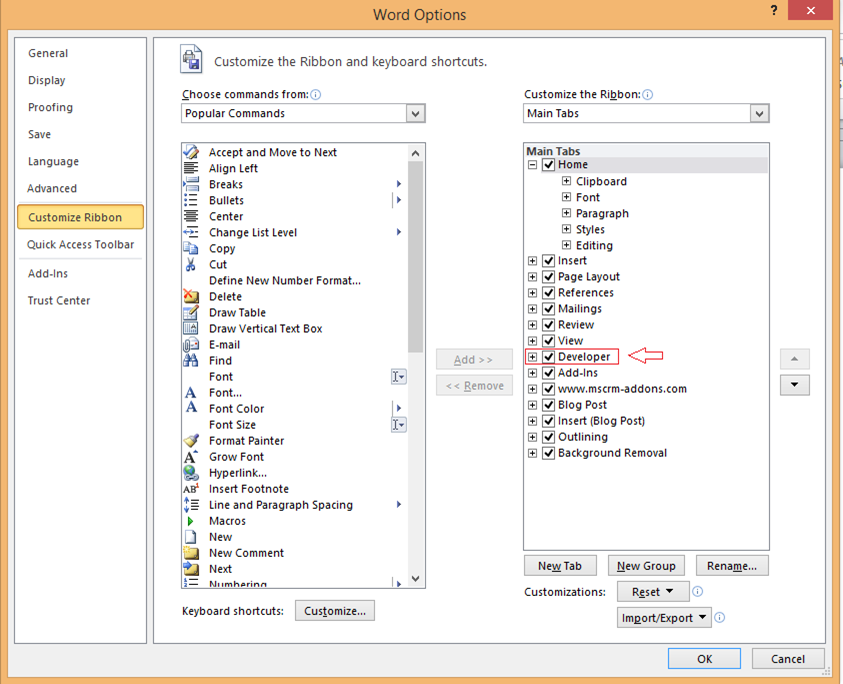
You need to enable the developer tab in word to view the XML mapping pane.To enable the tab Go to File > Options > Customize Ribbon, and then enable Developer.

Picture4.png

Now the developer tab will be available in the Toolbar.

Picture5Picture6

Design  your Template

Picture8.png

Picture9

Once required fields are mapped you can upload the template back to CRM.

Go to Settings > Templates > Document Templates > Upload Template.

Run Template

Once the template is uploaded you can run it from the related entity.

Picture10.png

Hope this helps you to generate documents directly from CRM.

This is my first blog post, Please update your suggestions and comments!!!!!!!!!!!!!!!